Performance
Synthetic Benchmarks
ATTO & Crystal Disk Mark
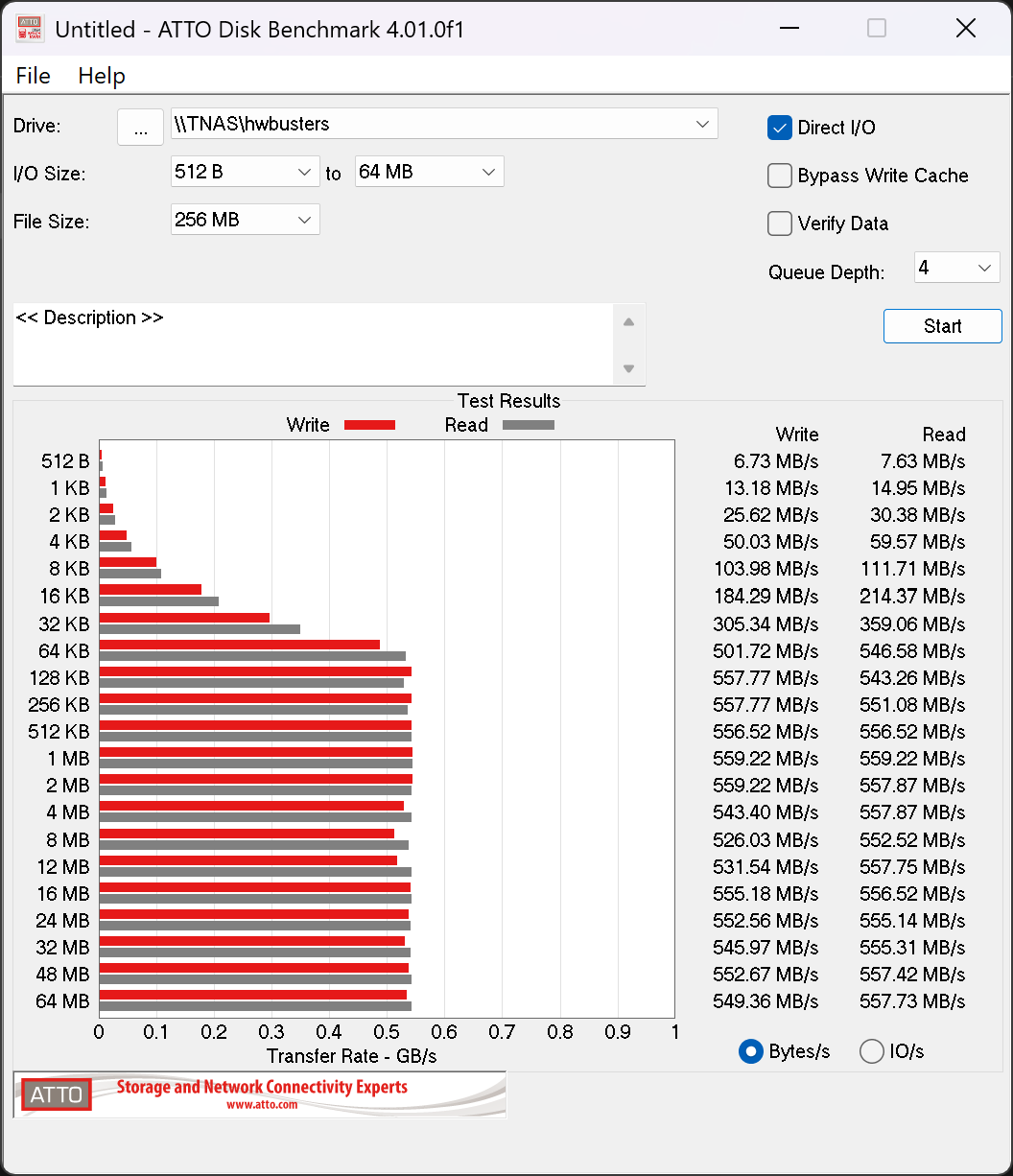
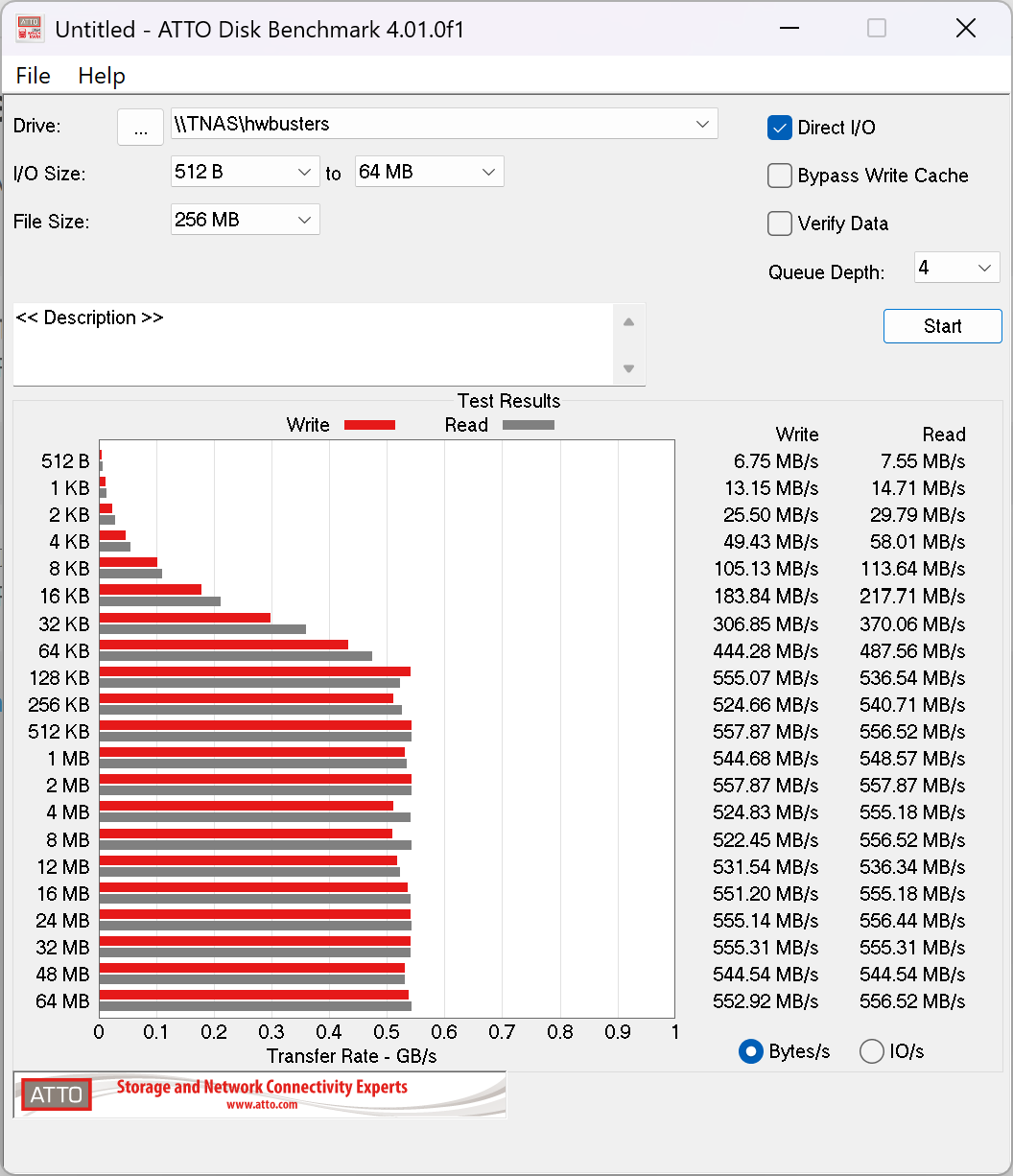
To evaluate the performance of our NAS setup over a 5GbE connection, we used ATTO Disk Benchmark and CrystalDiskMark to run a series of read and write tests. First, let’s take a look at the results from ATTO. While you can notice a difference, it is minimal.
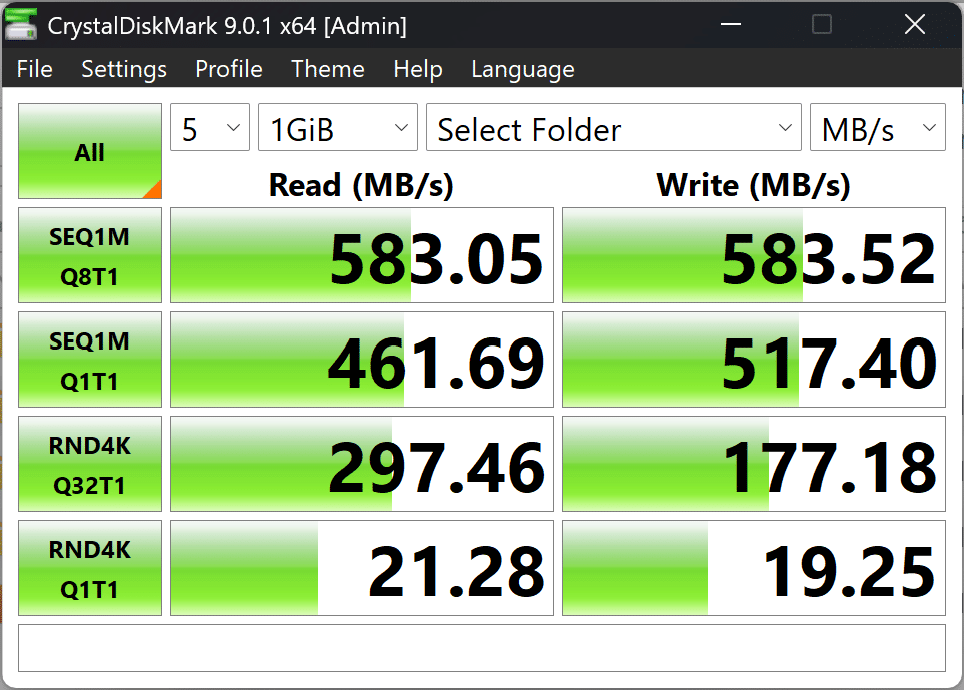
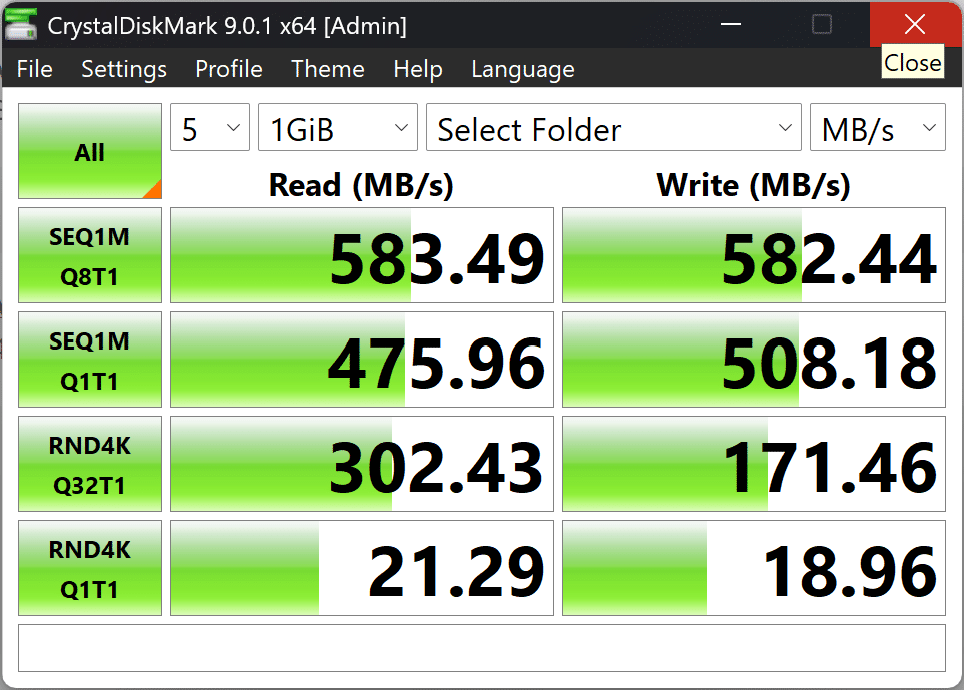
With CrystalDiskMark, the difference is not visible. The differences between the two setups could have resulted from normal run-to-run performance variance. Nonetheless, the NAS performed as expected over the 5GbE connection.
RAID 5 File Transfers
Let’s take a closer look at the results we achieved with and without caching.
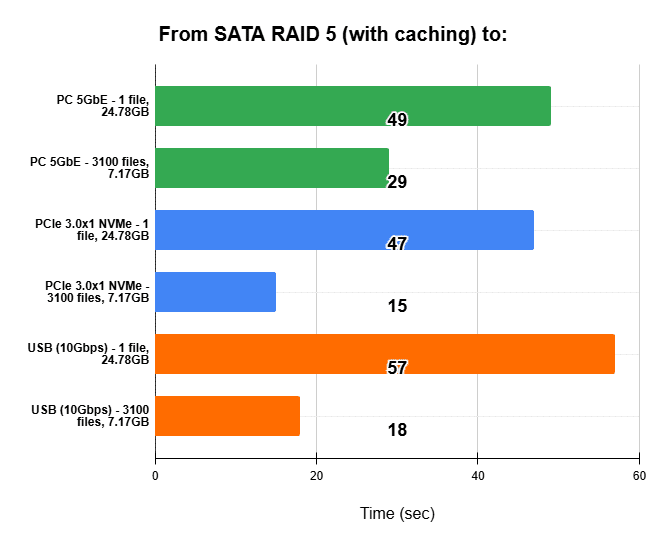
We ran three tests: transferring files from the NAS to a computer with a 5GbE interface, to an NVMe inside the NAS, and to an external USB drive. Moving a large file to the PC or the internal NVMe took approximately the same amount of time, despite the computer using a 5GbE connection, which is slower than a single PCIe 3.0 lane (theoretically maxing out at 1 GB/s).
The performance difference becomes evident when transferring many small files. The 5GbE connection required almost twice as long to complete the task as the internal SSD. Lastly, transferring all files to the USB drive took longer for the large file. However, the smaller files took roughly the same amount of time to write to the USB device as they did when copied to the internal NVMe.
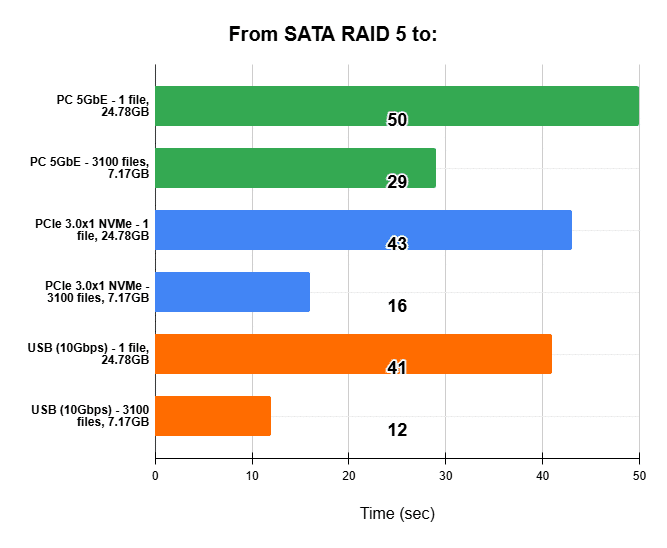
When we reran the same tests without caching, transfers to the PC and the NVMe SSD inside the NAS remained largely unchanged, but transfers to the USB drive became faster. This suggests that reading from the NVMe used for caching was a bottleneck for the USB device, which operates at 10 Gbps (1.25 GB/s), the fastest of the three options. Keep in mind that the NVMe used for caching has only a single PCIe 3.0 lane available, while the RAID 5 array consists of four 2.5-inch SSDs, each with its own PCIe 3.0 lane.
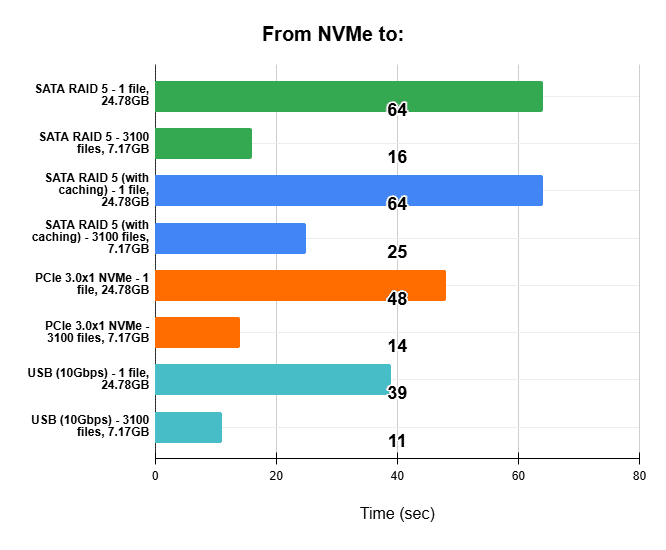
Given that the NAS has three NVMe slots, we also tested performance when moving files from a single NVMe drive. As expected, when copying to the RAID array with and without caching, the large file took the same amount of time, while small files copied faster during the no-cache test.
Both file types transferred faster when written to another NVMe drive than in either RAID configuration. Lastly, copying to the USB drive was the fastest overall, with the most noticeable difference observed during the transfer of the large file.
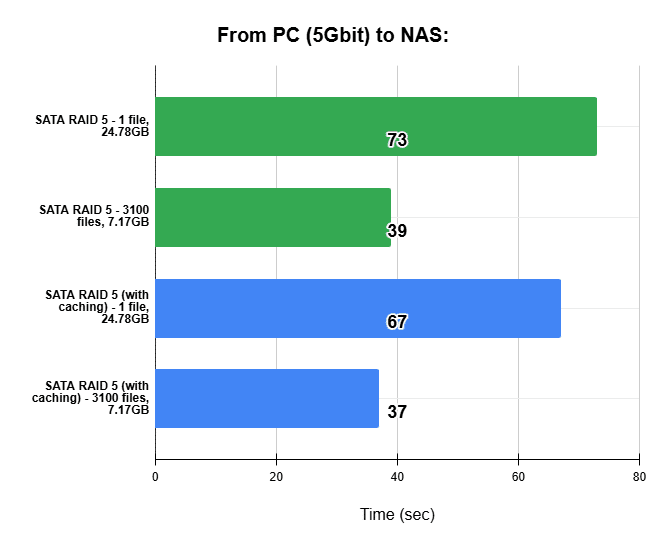
Finally, we tested what happens when moving files from the computer to the NAS, considering that the 5GbE connection is slower than both the USB interface and the internal NVMe connection. In this scenario, the slower transfer rate allowed the caching NVMe to process the incoming data fast enough that it was no longer a bottleneck and actually improved overall performance.
USB File Transfers
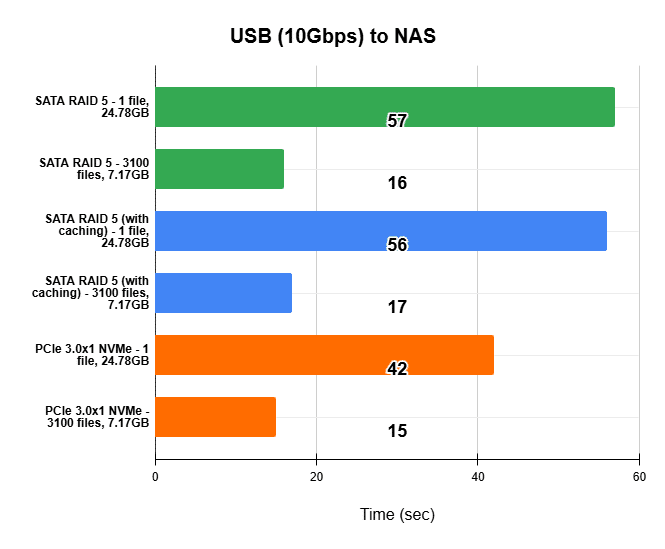
Since many users may want to back up their NAS to an external high-capacity drive or back up external drives to the NAS via USB, we felt it was essential to evaluate the performance of these USB ports.
Copying the large file from the USB drive to the NAS took the same amount of time as copying it in the opposite direction with caching enabled. The difference is that copying from the USB drive to the RAID array without caching took the same amount of time, whereas writing from the RAID array to the USB drive without caching was 16 seconds faster.
Lastly, copying files from the USB drive to a single NVMe inside the NAS took slightly longer than copying them in the opposite direction, although the difference was not significant.
Additional Performance Metrics
Power Consumption
One of the key advantages of using low-power, efficient components is noticeably reduced energy consumption. In standby mode, the NAS draws approximately 1.8 W. During startup, power usage briefly spikes to around 21 W before settling at roughly 15 W when idle and fully populated.
With a very low base power envelope, the N150 consumes minimal power at idle and remains efficient under sustained load, helping to keep long-term electricity costs down. Its Skymont cores generate far less heat than traditional desktop CPUs, allowing the system to be cooled with a low-speed fan, resulting in a quieter, more reliable NAS.
Heat Management
The F4-425 Plus follows a conventional NAS layout, with SATA drive bays at the front and NVMe drives mounted directly on the motherboard. With this chassis design, approximately 6 mm of space is available for an NVMe heatsink. It’s easy to check compatibility, as a sponge is glued to the board and nearly touches the aluminum housing.
The rear-mounted 120 mm fan pulls air through the front and bottom vents and exhausts it out the back, effectively cooling the SATA drives, NVMe drives, and CPU.
In terms of thermals, in a room with an ambient temperature of 25 °C, the SSDs idled between 33 °C and 37 °C after 1 hour with the fan set to automatic, while the CPU stabilized at 45 °C. Using an external power supply also helps maintain thermal efficiency by moving heat generation away from the NAS enclosure.
Noise Levels
In our hemi-anechoic chamber, with a background noise floor of approximately 6 dBA and an ambient temperature of 25 °C, we measured the NAS’s acoustic performance with the unit positioned 1 m from the microphone. TOS allows users to choose from low, medium, and high fan speeds, or to leave the system in automatic mode. During initialization, the fan briefly spins up to full speed, which can be somewhat distracting if the NAS is placed on your desk.
| Noise Level per Fan Speed setting | |
|---|---|
| Full | 37.3 dBA |
| Medium | 31.1 dBA |
| Low | 17.7 dBA |
| Auto | 13.3 dBA |
Interestingly, in the Auto setting, the system was significantly quieter than in Low mode (about 615 RPM in Auto versus 705 RPM in Low), although the difference would be difficult to detect at such low noise levels. The 31.1 dBA measured at medium speed is slightly higher than ideal, but the maximum of 37.3 dBA (at approximately 1470 RPM) is still reasonable. With spinning drives installed, noise levels would naturally be higher. SSDs are a good choice if the NAS is located close to your desk or workspace. Lastly, the motherboard’s PWM connector lets you replace the fan with a quieter option, a nice feature.
Boot, Reboot & Shut Down
System boot time was slightly longer than expected at 2 minutes and 45 seconds. Shutting down the system takes almost no time, while a reboot is only marginally shorter than a cold boot. While this is not a significant issue, it is somewhat longer than the typical one-minute boot times we observed with other systems.
| Time to… | |
|---|---|
| Boot | 2:43 min |
| Reboot | 2:45 min |
| Shut Down | 2s (approximately) |